
How to use Gaming Habit Hacker
How to use Gaming Habit Hacker
For a quick-and-easy tutorial on how to use Gaming Habit Hacker, have a look at this 60-second video which covers how to:
- Sign up
- Set a goal
- Make a plan
- Message your coach
If you want more in-depth information on how to use Gaming Habit Hacker, click on the different items in the list below.
1. Click the green “SIGN UP” button on the top right corner.
2. Fill in your username, email, password, and preferred name to create a new account.
3. Remember to keep your username and password saved.
1. Click the green “LOG IN” button on the top right corner.
2. Next, click “Forgot your password?”.
3. Once you have filled in your username or email address, an email will be automatically sent to you to reset your password.
1. On the homepage, click on the first module called “My goals”.
2. Fill out the 28-day challenge and press “Save to my profile”.
3. Fill out your goal and reasons for change. Again, press “Save to my profile”.
4. All this information will be automatically saved to your profile under “Draft plans” in the “My Plans” page.
- NOTE: If you ever need to find “My Plans”, it’s on the right corner of the top black header.
5. Click on the blue “Complete” button. When you are happy with your goal, press “Save plan as complete”. This will move the goal from “Draft plans” to “Completed plans”.
1. On the homepage, click on the second module called “Take action” or any of the modules under “EXTRA RESOURCES”.
2. Look through the bunch of great strategies.
3. When you have found a strategy that is right for you, scroll all the way to the bottom of that specific strategy page.
4. Click “I would like to use this information in my own life” which will automatically bring up a chalkboard for you to write on.
5. Write down how, when, where and why you could use your chosen strategy.
6. Click “Save to my profile”.
7. Everything you have written will be saved to “Draft Plans” in the “My Plans” page, which you will automatically be sent to.
- NOTE: If you need to find “My Plans” again, it’s on the right corner of the top black header.
8. Click on the blue “Complete” button.
9. Fill in the “Barriers to my plan” and “My Plan B” sections.
- NOTE: If you need more information on how to write that, click on “Make your Plans Work”.
10. Make sure the “Request feedback now” remains ticked so you can get feedback on your plan from your coach.
11. Click “Save plan as complete”. You coach will get back to you shortly with feedback.
1. When your coach sends you a message, you will automatically be notified via email. However, if you want to manually check for messages on this website, follow these instructions. On the homepage, click “My Plans” which can be found on the right side of the top black header.
2. Click on “Completed Plans”.
- NOTE: If you do not have any completed plans, go into “Draft Plans”. Click the blue “Complete” button, fill in the blank boxes, and click “Save plan as complete”.
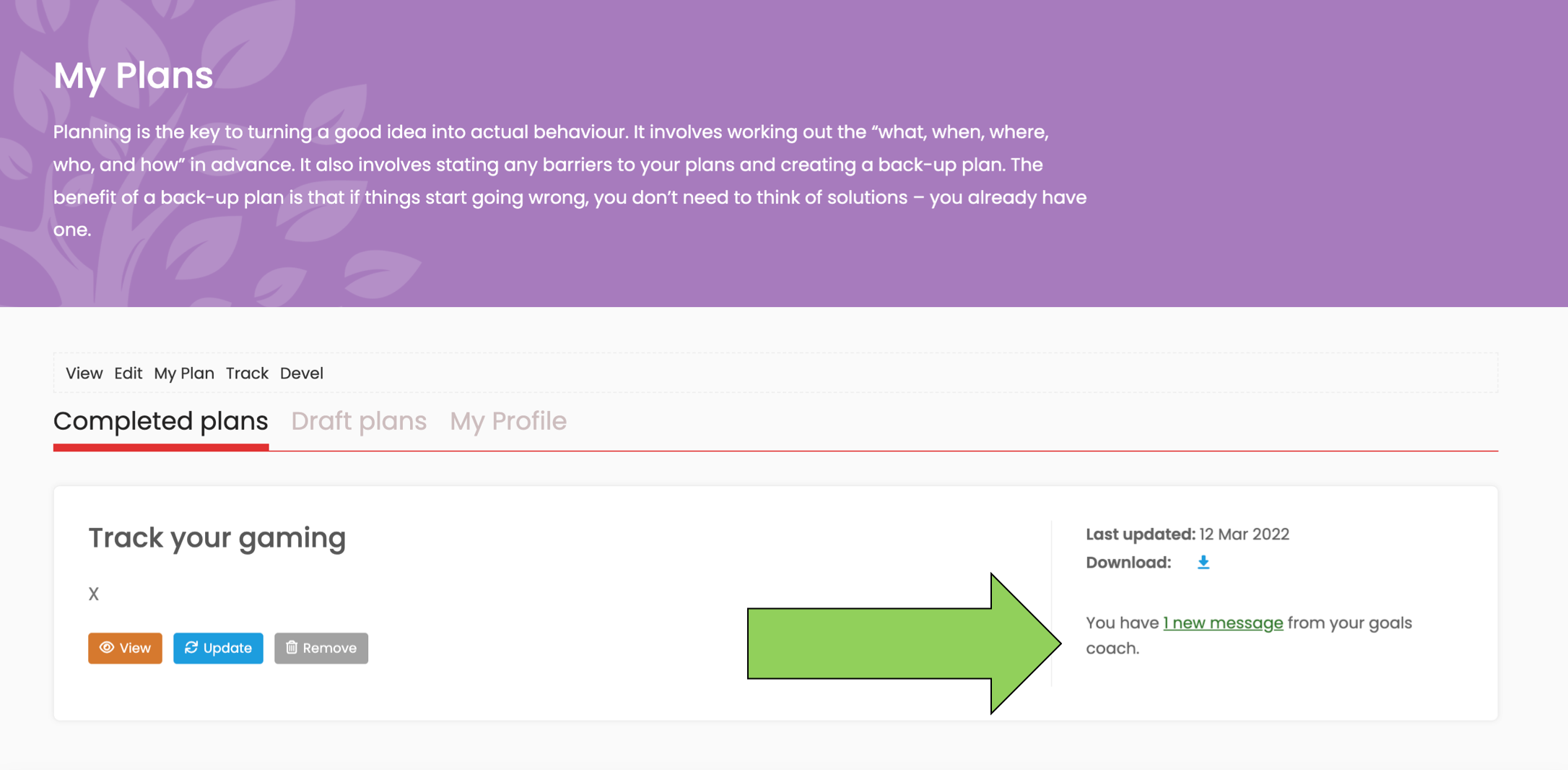
3. Have a look at the screenshot with the green arrow. For each plan, you can see how many new messages you have received from your coach.
4. When you click on “new message” underlined in green, you will be sent to a chatbox where you can respond to your coach.
1. On the homepage, click “My Plans” which can be found on the right side of the top black header.
2. Click on “Completed Plans”.
- NOTE: If you do not have any completed plans, go into “Draft Plans”. Click the blue “Complete” button, fill in the blank boxes, and click “Save plan as complete”.
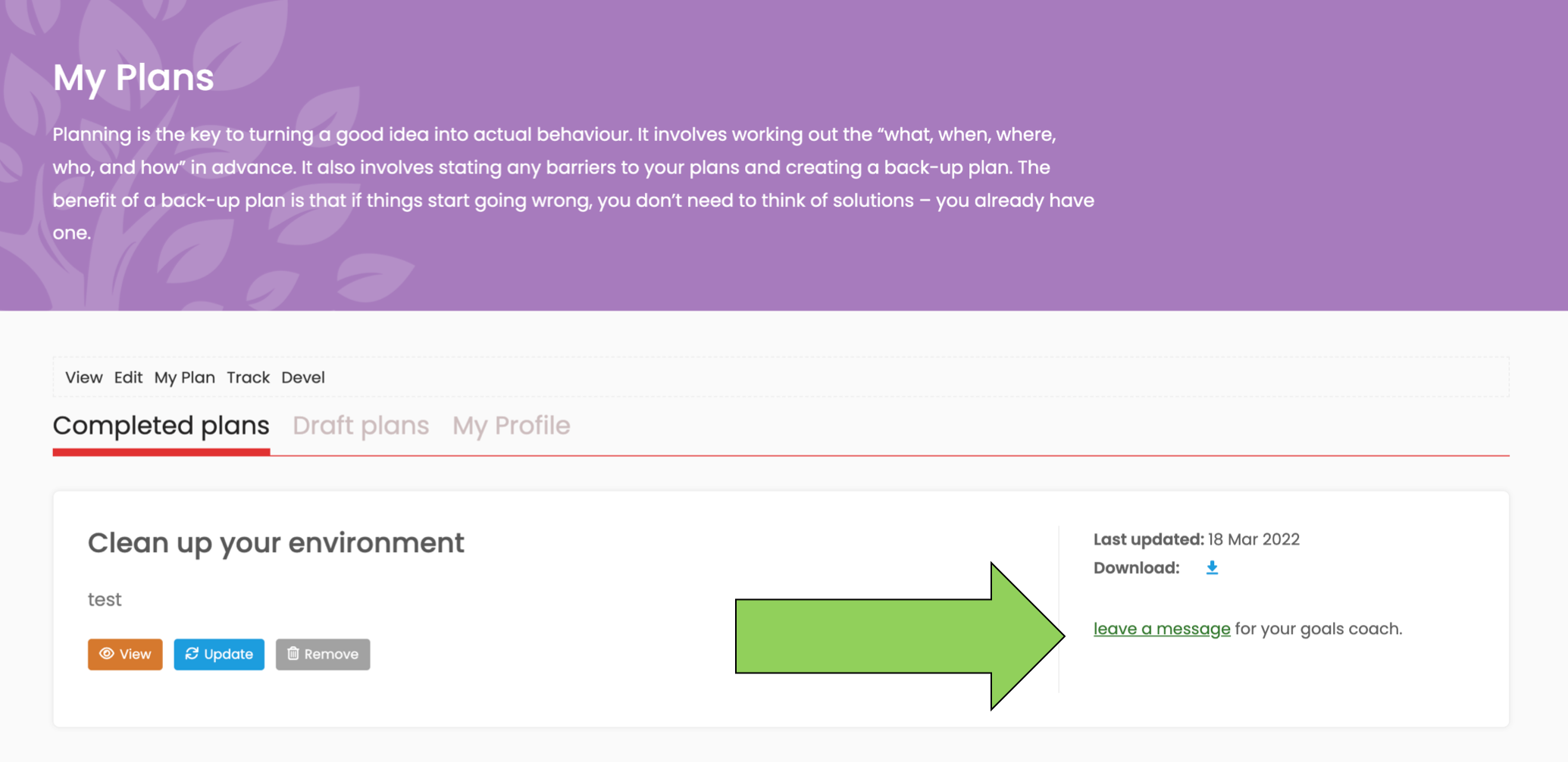
3. Have a look at the screenshot with the green arrow. For each plan, you can leave a message for your coach.
4. When you click on the “leave a message” underlined in green, you will be sent to a chatbox where you can message your coach.